Unreal Engine plugin · Guide
Macula.
Scans that move.
Bring a 3D scan into Unreal Engine and make it move: blocks that slide, cubes that grow, particles, light. One click prepares the scene, then you place your own effects like masks and key them in Sequencer.
- Gaussian splats from Postshot, Polycam, Luma, Scaniverse or SuperSplat, and LiDAR point clouds.
- 36 effect presets, each in a zone you draw like a mask: a sphere, a box, a line, with a feather, or the distance to the camera.
- Sorted on the GPU and drawn with the scene: depth of field, bloom and TSR see the splats.
- Everything is deterministic: what you scrub is what you render.
Quick start
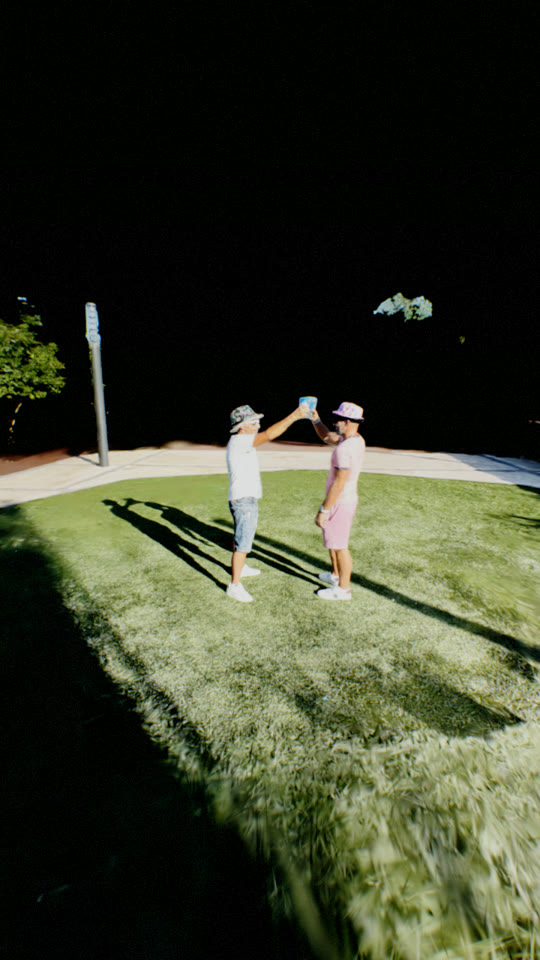
.ply, .splat, .spz, .las, .pts or .xyz file into the Content Browser, then click Import.The whole guide uses the same scan: a garden with two friends raising a toast, captured with a phone and trained as gaussian splats (720,000 splats).
1Import a scan
Drop the file into the Content Browser. The import window opens with settings that suit most files: leave them as they are the first time.
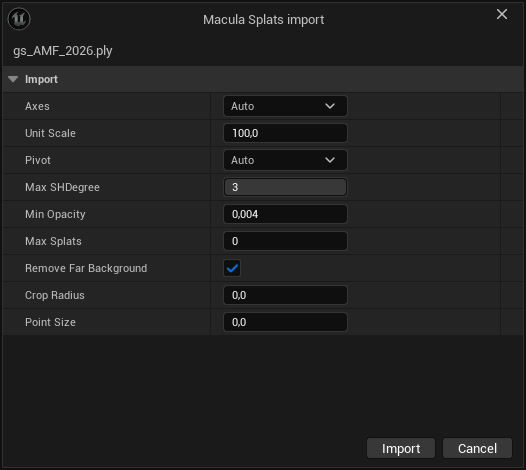
| Axes | Auto reads the right orientation for each format (3DGS, SPZ, LiDAR). Pick another one if your scan comes in sideways. |
| Unit Scale | 100 means the file is in meters. Raise it if the scan looks tiny. |
| Pivot | Auto puts it at the bottom centre for a person or an object, at the centre for a scene. |
| Max SH Degree | 0 to 3. Higher keeps the colours that change with the angle, lower is lighter. |
| Min Opacity | Removes almost invisible splats. |
| Max Splats | Keeps only the most visible splats (0 = all). |
| Remove Far Background | Phone captures often come with a huge dome of sky splats 100 m away. When the scan has a subject in the middle, this crops it for you. |
| Crop Radius | Removes everything farther than this from the middle, by hand. |
| Point Size | Size of the points of a point cloud. 0 = worked out from the spacing of the points. |
Splats are sorted at import from the most to the least visible. That is why you can lower the density later without holes: the important ones are always drawn first.
2Place it in the level
Drag the asset into the viewport. Click on the scan to select it: the Details panel shows the Macula buttons right under Transform, then the performance and look settings.
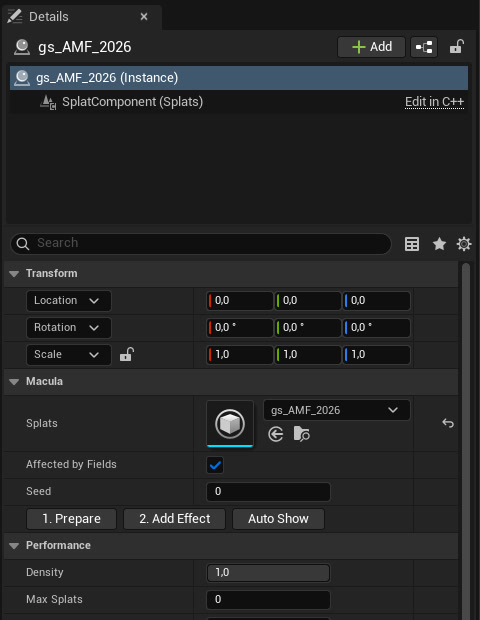
3DGS scenes often arrive tilted, in the frame of the first photo of the capture. Rotate the actor until the ground is flat.
3Prepare
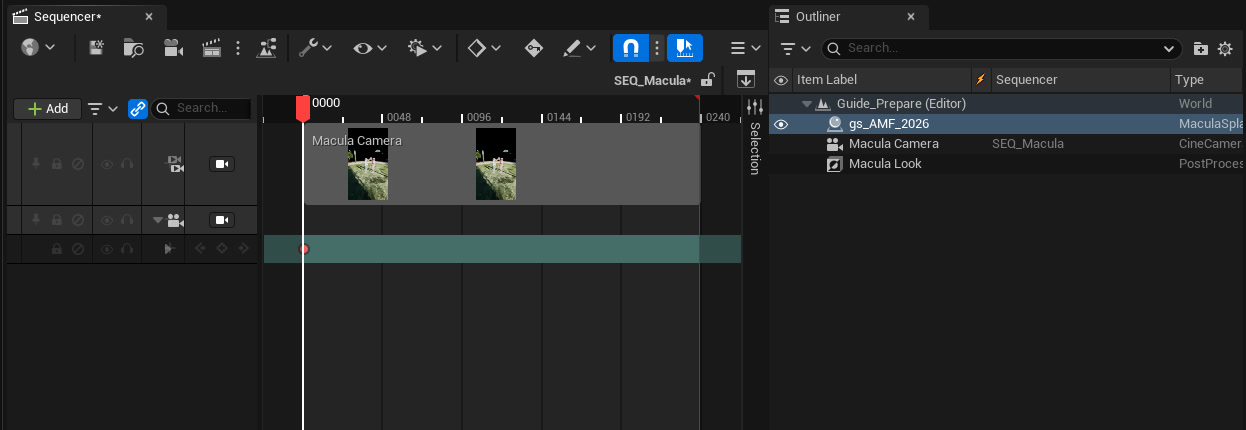
Frame the viewport the way you want the shot, then click 1. Prepare. It gets the scene ready and stops there:
- Macula Look: a post process with a black background, bloom, vignette and grain;
- Macula Camera: a vertical 9:16 camera where your viewport was, with the same zoom. It stays still: key it when you want it to move;
- a Level Sequence of 10 seconds with the camera cut, opened in Sequencer. Make it longer or shorter like any sequence.
No effect, nothing animated. The scene is yours.
4Add effects
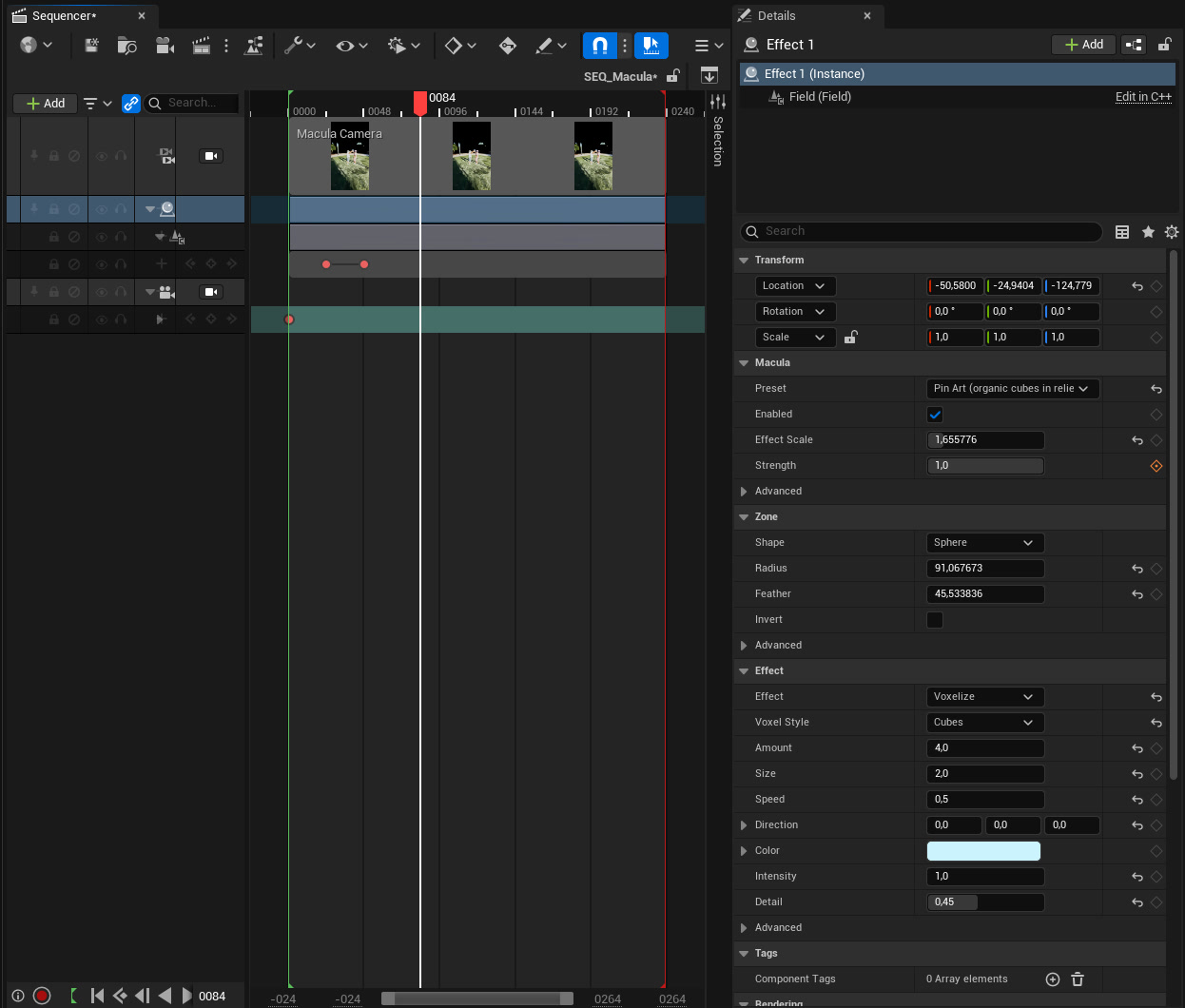
Select the scan and click 2. Add Effect. You get a Macula Field, a zone plus an effect, like a mask with a feather:
- a Sphere placed where the viewport looks, at the depth of the scan;
- a Radius, a Feather and an Effect Scale worked out from the distance of the scan, so a bust up close and people in a garden both start right;
- only this scan is affected, and the new effect is selected.
Then it is your call:
- Pick a Preset. The zone you have stays, the look goes inside it.
- Move and scale the sphere with the gizmo, or change its Shape (Box, Line...).
- Key Strength with the diamond next to it: 0 where the effect starts, 1 where it is full. Key Radius or the position to make it travel.
- Click 2. Add Effect again for the next one. Each effect is its own actor: copy it, hide it, delete it.
The settings that matter
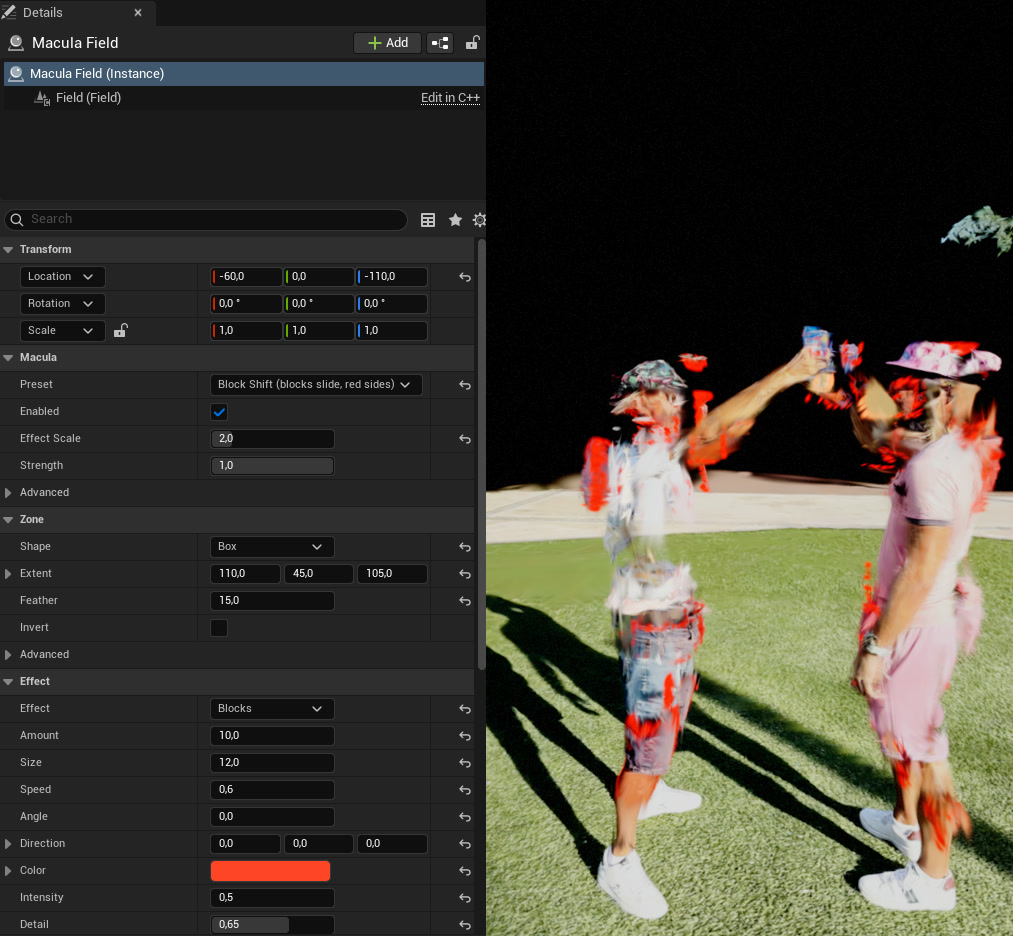
| Preset | Sets the look at once and keeps your zone. Start here, then tune. |
| Effect Scale | Makes the pattern bigger or smaller without touching the zone. Add Effect sets it for your scan, and a new preset keeps it. |
| Strength | Key it in Sequencer to fade the effect in and out. |
| Zone > Shape | Sphere, Box, Line (a stroke with round ends), Cylinder, Shell (rings and shock waves), Slab (scan lines), Plane (wipes), Camera Distance, or Everything. |
| Zone > Feather | The soft edge, in cm: the effect fades out over this distance outside the zone. The viewport draws it as a second, dimmer outline. Noise Breakup in Advanced breaks the edge with noise. |
| Effect | Amount (how far, in cm), Size (pattern size), Speed, Color. Rare settings are in Advanced. |
Zones are masks
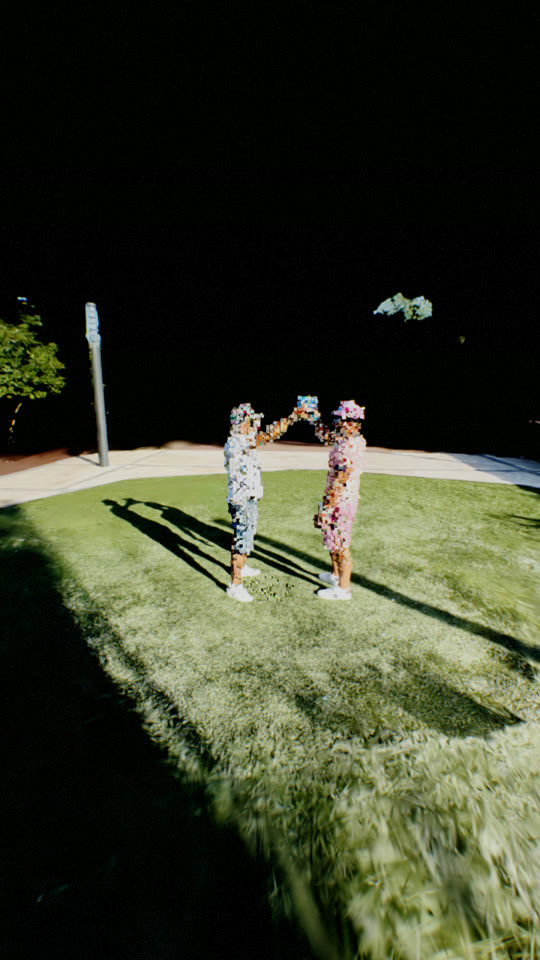
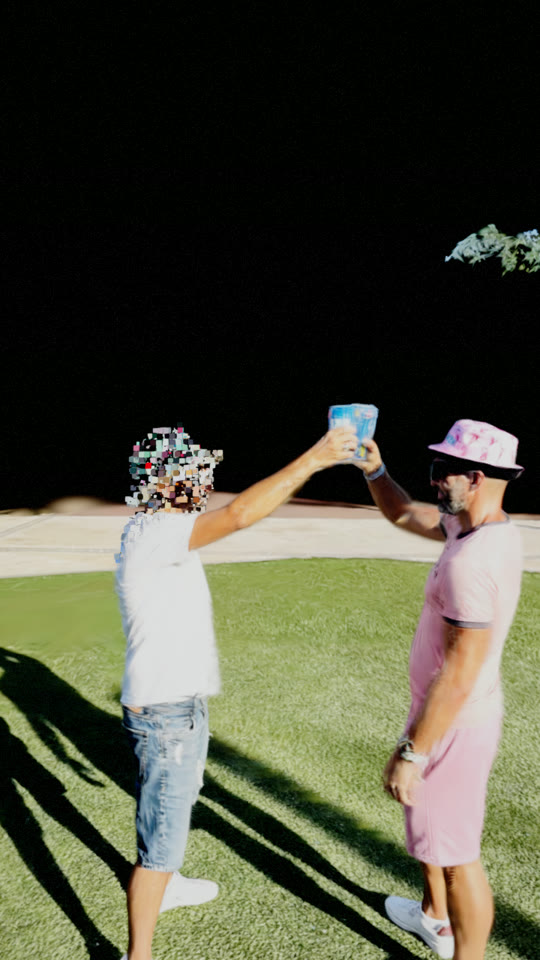
Use as many effects as you like, each with its own shape, feather and look. Here a small Sphere with a 25 cm feather sits on one head, with the Pin Art preset: only that head turns into cubes, the cubes fade out towards the neck.
- Sphere: a face, a hand, a spot on the ground.
- Box: a person, a wall, a room.
- Line: along an arm, a road, a stroke. Rotate and scale the actor to draw it.
- Invert: everything except the zone.
Drag the handle to compare the scan with and without Pin Art, a sphere zone that grows from the two people over the whole lawn:
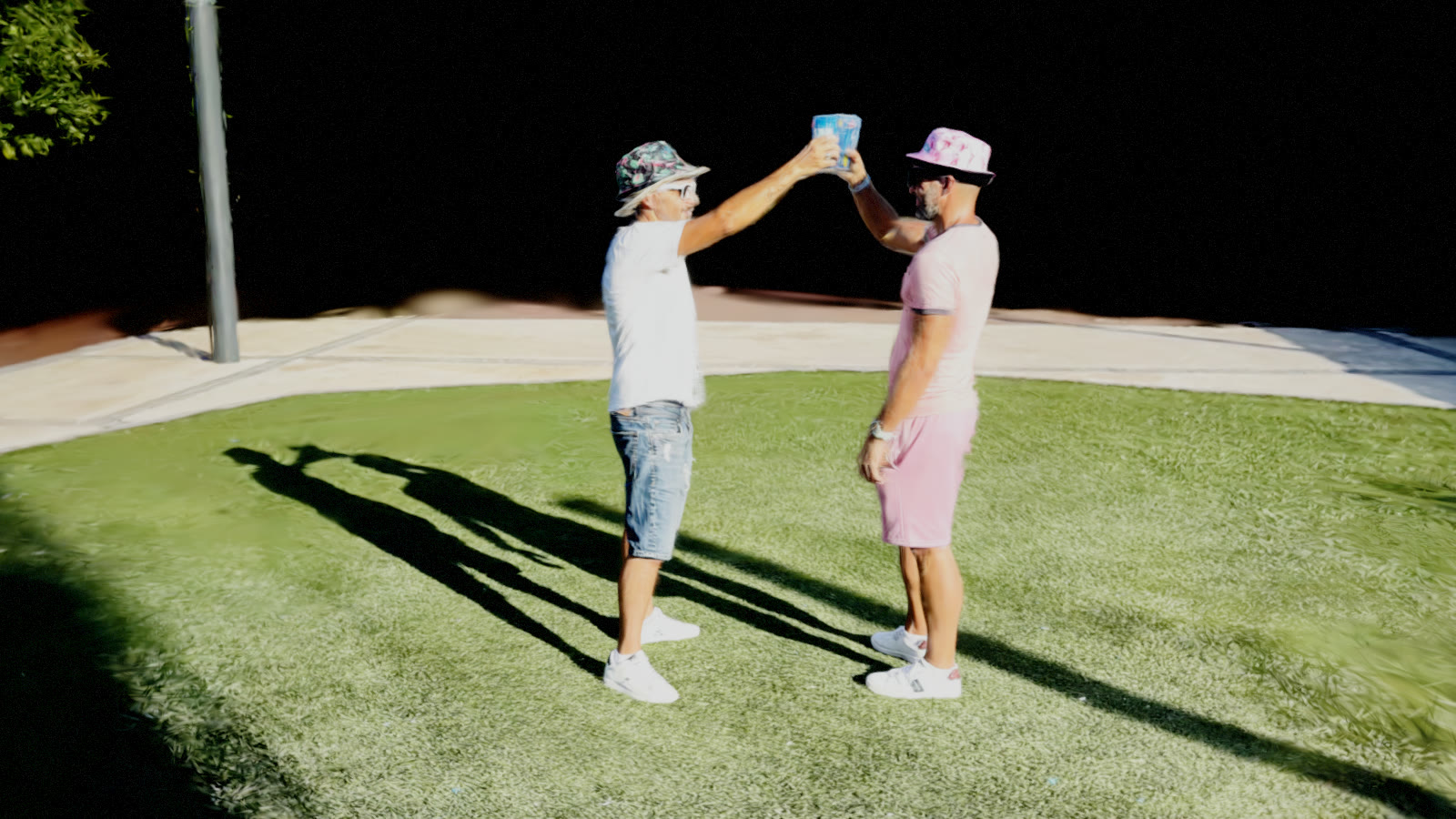
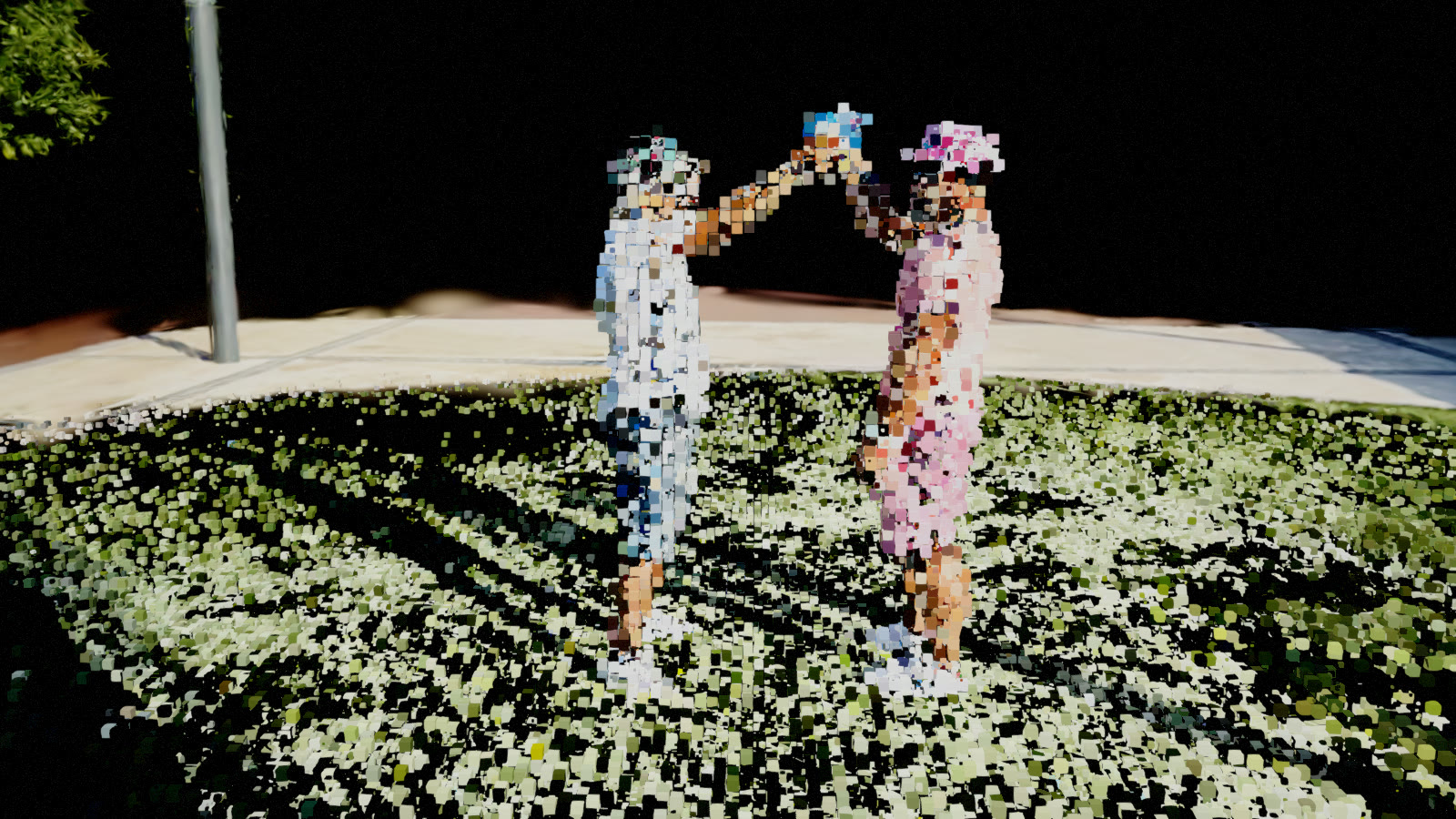 ScanPin Art
Looks
A few of the 36 presets on the garden scan, as they ship:
All 36 presets
Ring Sweep, Golden Shockwave, Sparkle Assemble, Slice Glitch, Slice Stripes, Cyan Drips, Smear, Voxel Squares, Cube Storm, LED Wall, Terraces, Topo Lines, Only Contours, Grid Seams, Burn Reveal, Dissolve To Dust, Heat Tint, Hue Cycle, Clay Look, Rim Glow, Glyph Skin, Light Sweep, Scan Line, Noise Morph, Explode, Twister, World Roll, Fracture, Glitch, Sparkles, Wipe, Camera Bubble, Near Shatter, Far Dust, Block Shift, Pin Art.
Camera distance
The Camera Distance zone follows the camera. Everything closer than Near Distance and farther than Far Distance is in the zone, the band in between stays sharp. Put an effect there and the scan breaks apart as the camera gets close, and fades to dust in the distance.
- Camera Bubble: near and far.
- Near Shatter: only near.
- Far Dust: only far.
Add it as an effect (Shape: Camera Distance, or one of these presets) and tune the two distances to your shot. Auto Show sets them again on every frame from the distance between the camera and the scan.
Auto Show, for a quick test
Auto Show does Prepare plus a Director: a series of effects one after the other, on a beat, with the camera bubble and a slow push in. Handy to see what a scan can do in ten seconds. To work on your own shot, use Prepare and Add Effect instead, or delete the Director and keep the camera and the sequence.
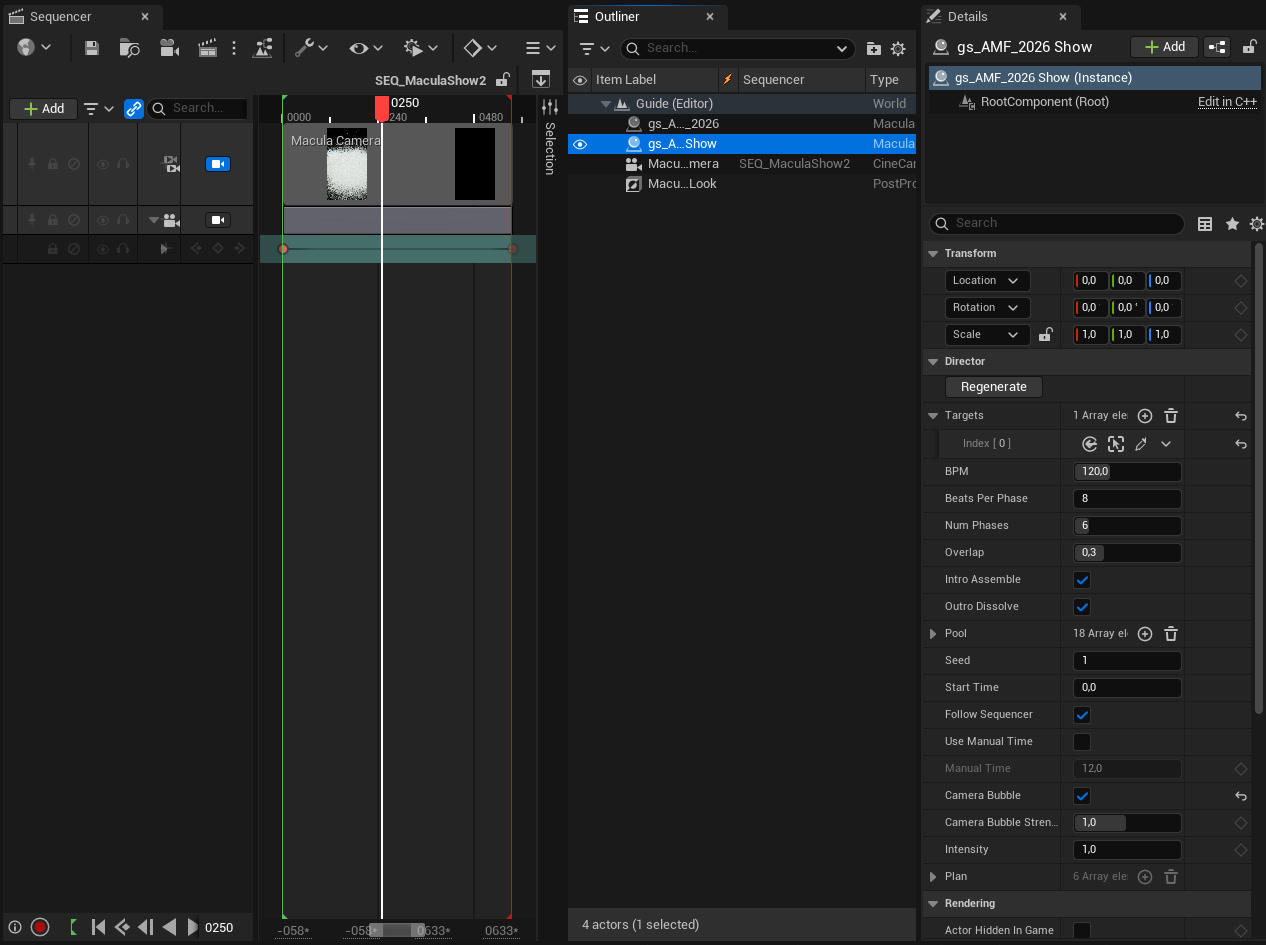
Director settings
| BPM, Beats Per Phase | The pace. At 120 BPM and 8 beats, each effect lasts 4 seconds. Match it to your music. |
| Num Phases | How many effects in the show. |
| Overlap | How much two effects blend at each change. |
| Intro Assemble, Outro Dissolve | The scan builds itself from sparkles at the start and turns to dust at the end. |
| Pool | The presets the Director picks from. Remove the ones you do not want. |
| Seed | Another show with the same settings. Or click Regenerate. |
| Camera Bubble | Near and far, the scan breaks into particles. Its distances follow the camera on every frame. |
| Intensity | Strength of the whole show. |
Render
- Movie Render Queue renders exactly what you see in Sequencer. Set Anti-aliasing to None with 4 temporal samples.
- Splats write depth where they are solid, so depth of field, fog and TSR treat them like geometry. Keep the aperture at f/5.6 or more for clean edges around people: a very shallow focus blurs the soft splat edges into a halo.
- Several scans in the same level are sorted together, so a character scanned alone blends right into a scanned place.
- Meshes hide splats and splats hide meshes: mix your scan with any Unreal scene.
Settings of the scan
Performance
| Density | Share of the splats drawn, the most visible first. |
| Max Splats | A ceiling per scan. |
| LOD Distance, LOD Min Density | Beyond this distance, the density goes down with the square of the distance. For big scenes. |
| SH Degree | 0 to 3: colours that change with the angle, or flat colours that draw faster. |
| Min, Max Screen Size | Skips tiny splats and caps huge ones when the camera flies through the scan. |
| Max Distance | Nothing is drawn beyond it. |
Look
| Splat Scale, Brightness, Saturation, Opacity, Tint | Grade the scan without touching the file. |
| Style | Splats, or Points: a point cloud look, with Point Size and Points Per Splat. |
| Lit By Scene Lights | Unreal point, spot, rect and directional lights light the splats. |
Formats
| Format | What is read |
|---|---|
| PLY 3DGS | Postshot, Polycam, Luma, Scaniverse, INRIA... Position, scale, rotation, opacity, colour, spherical harmonics up to degree 3. ASCII or binary. |
| Compressed PLY | PlayCanvas and SuperSplat, old and new layouts. |
| PLY point cloud | Photogrammetry, LiDAR, mesh vertices: x y z and colour. |
| SPLAT | 32 bytes per splat. |
| SPZ | Niantic, versions 1 to 3. |
| LAS 1.0 to 1.4 | Point formats 0 to 10, 8 or 16 bit colour, UTM coordinates recentred. |
| PTS, XYZ, TXT | x y z, x y z r g b, x y z intensity r g b. |
Not read yet: SOG, SPZ 4, KSPLAT, LAZ, E57. Convert them with SuperSplat or CloudCompare.
Questions
Macula is still in development. Questions and ideas: contact, or a message on Instagram.
Macula · © 2026 Tony Lopez. All rights reserved.